How to Activate Translate My Sheet After Purchase
Enter your activation code, enable Pro engines, and confirm the subscription status in Google Sheets.
Have the activation code supplied with your purchase ready. Keep it private because it unlocks the Pro access associated with your order.
Activate Pro in three steps
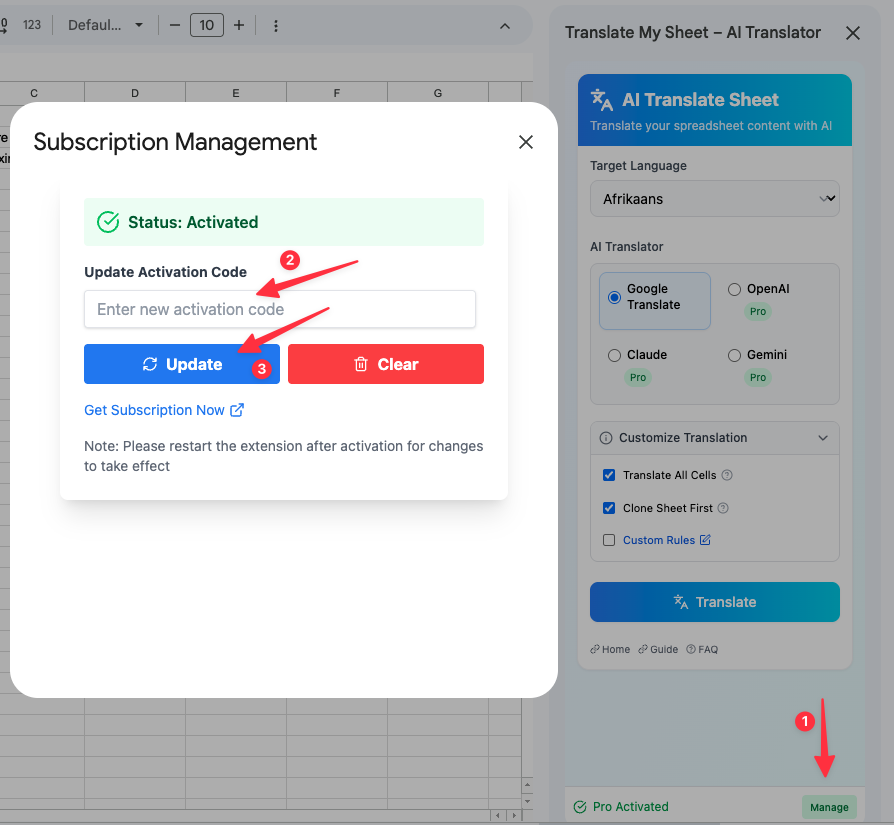
Open a Google Sheet and launch Translate My Sheet. Then follow the numbered locations in the screenshot.
1. Open Subscription Management
At the bottom of the add-on sidebar, select Activate if you are using the free version, or Manage if a subscription is already connected.
2. Enter the activation code
Paste the complete code into the Activation Code field. If the window already shows an active status, use the update field when replacing the current code.
3. Activate or update
Select Activate for a first-time setup or Update when replacing an existing code. A successful request shows an activated status.
Restart the add-on
Close the management window and sidebar, then reopen Translate My Sheet from the Extensions menu. If the status has not refreshed, reload the spreadsheet and open the sidebar again.
Troubleshooting
The code is reported as invalid
Copy it again and check for missing characters or spaces at the beginning or end.
Pro engines are still locked
Restart the sidebar. If needed, refresh the sheet before reopening the add-on.
You cannot locate the code
Email [email protected] from the address used for purchase so the order can be located.