How to Install and Use Translate My Sheet
Install the Google Sheets add-on, choose a translation scope and engine, and run your first selected-cell translation.
1. Install the add-on
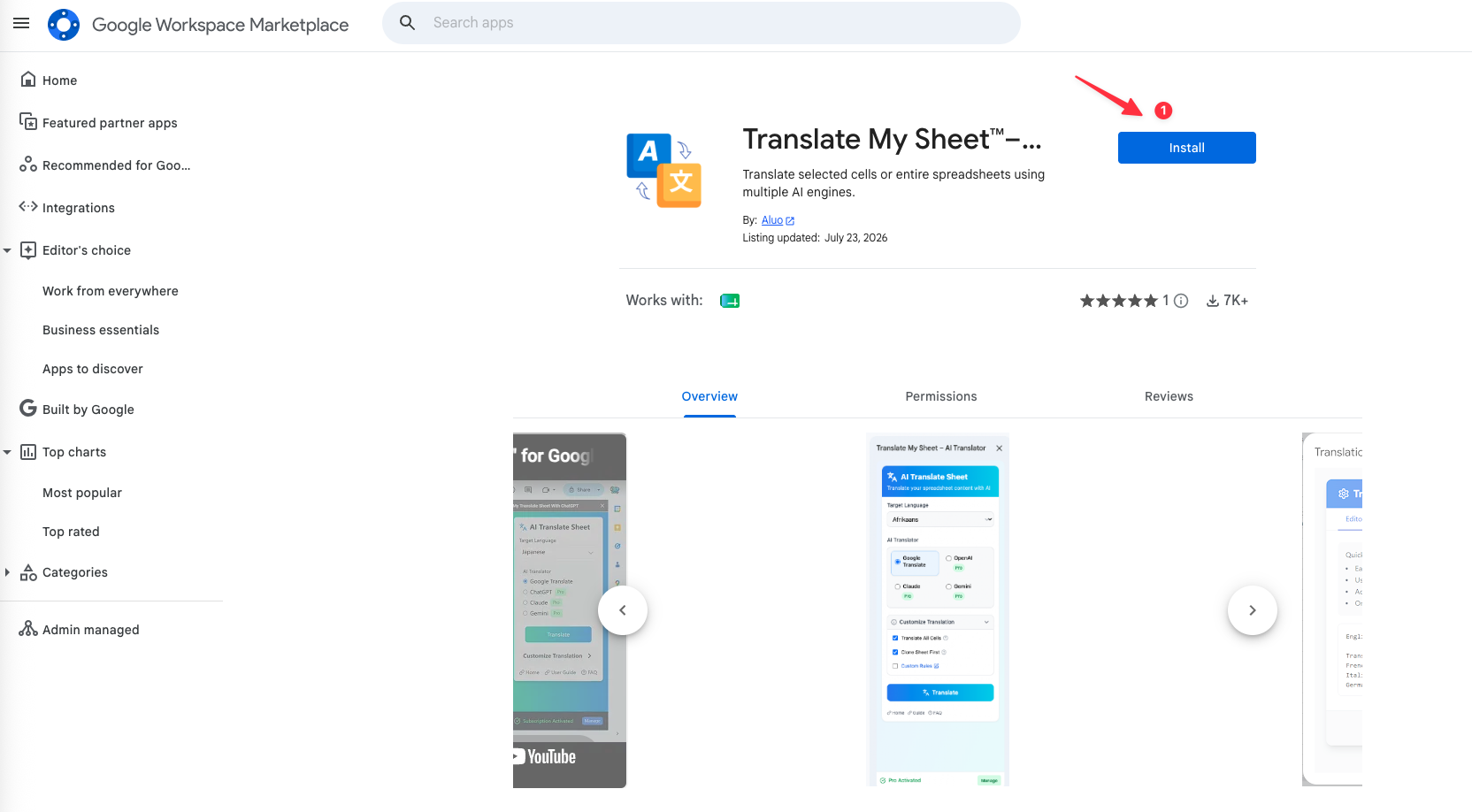
Open the Translate My Sheet listing in Google Workspace Marketplace, select Install, and complete the Google authorization flow.
2. Open it in Google Sheets
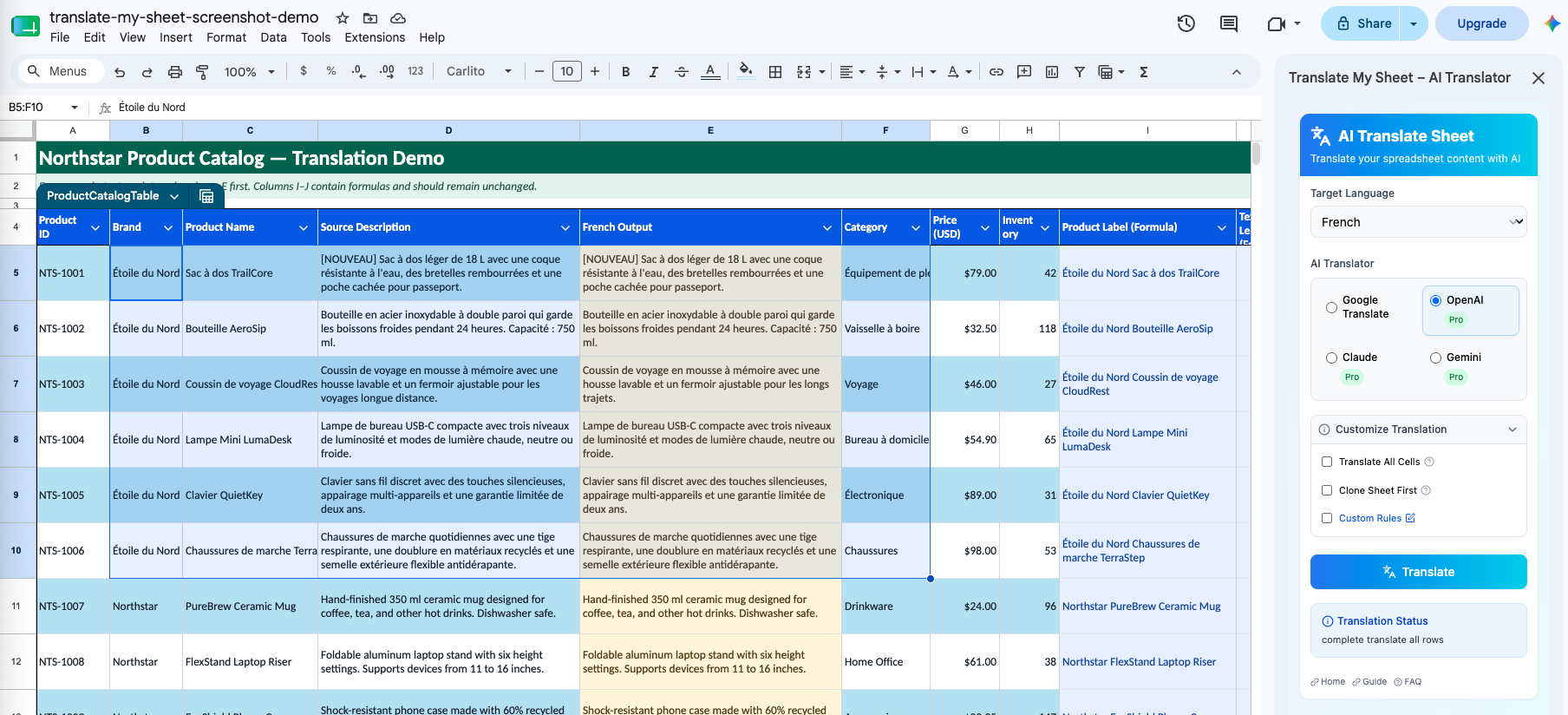
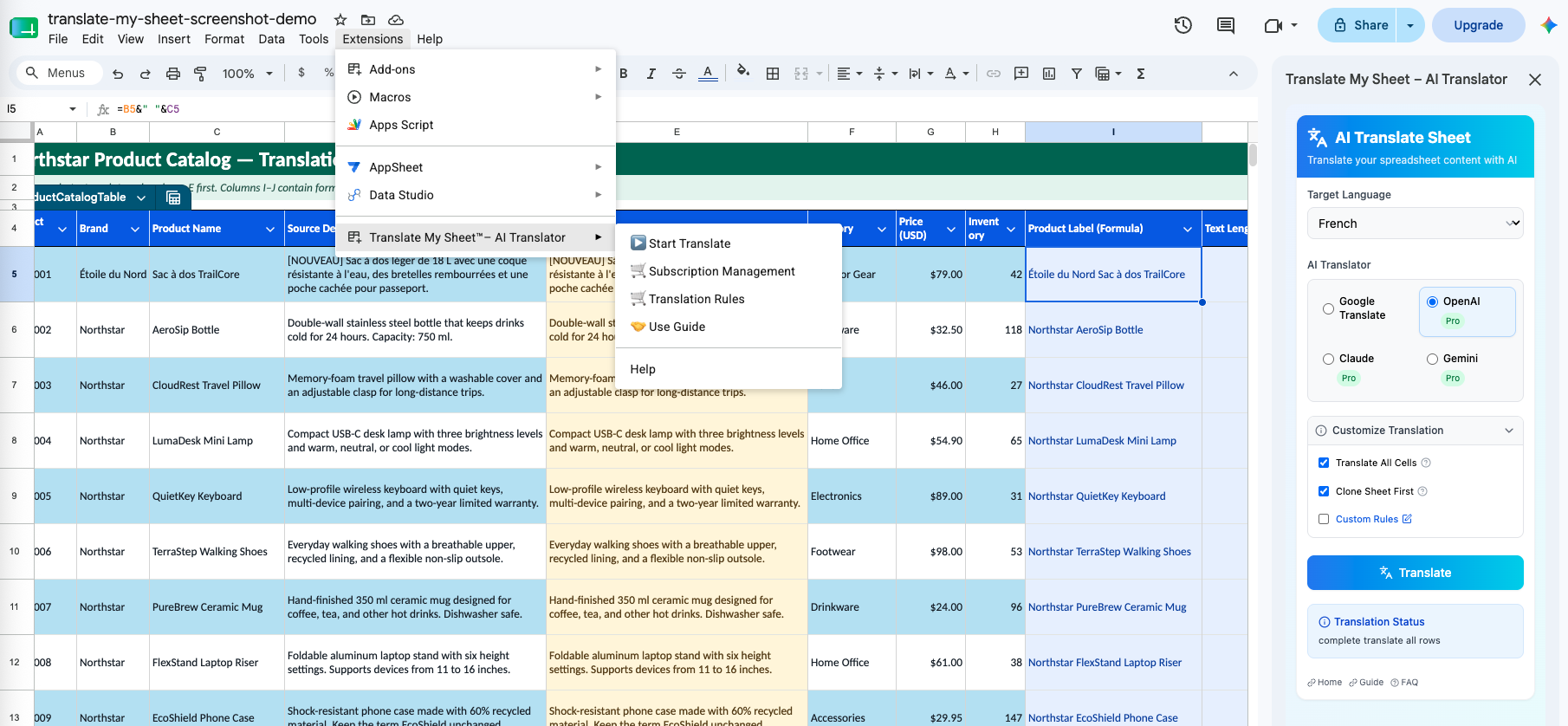
Open a spreadsheet, then choose Extensions → Translate My Sheet – AI Translator → Start Translate. The translation controls appear in a sidebar on the right.
3. Select cells or the active sheet
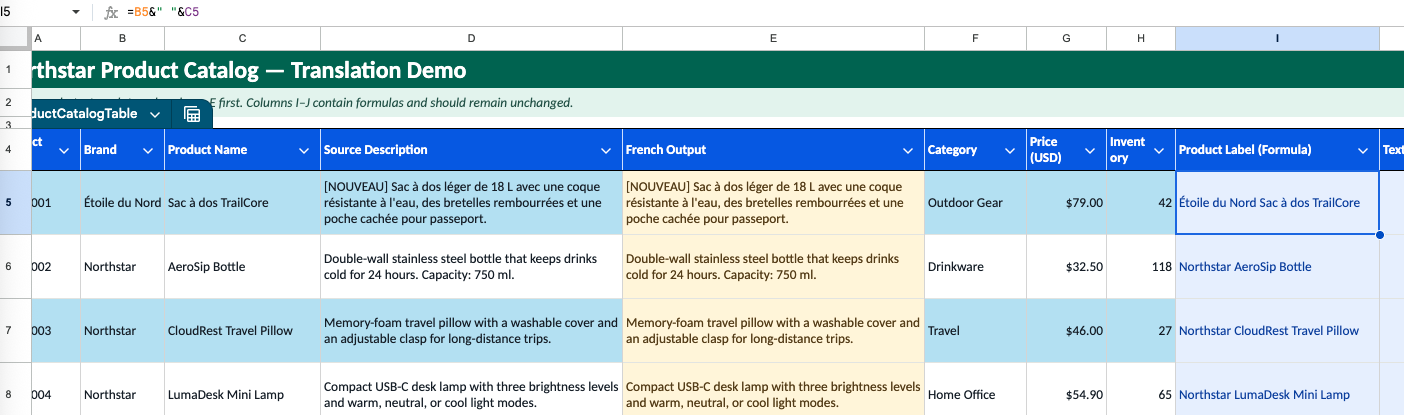
Highlight a range for a focused job, or choose the full-sheet scope when the complete active sheet is intended for translation. Formula cells are detected and skipped.
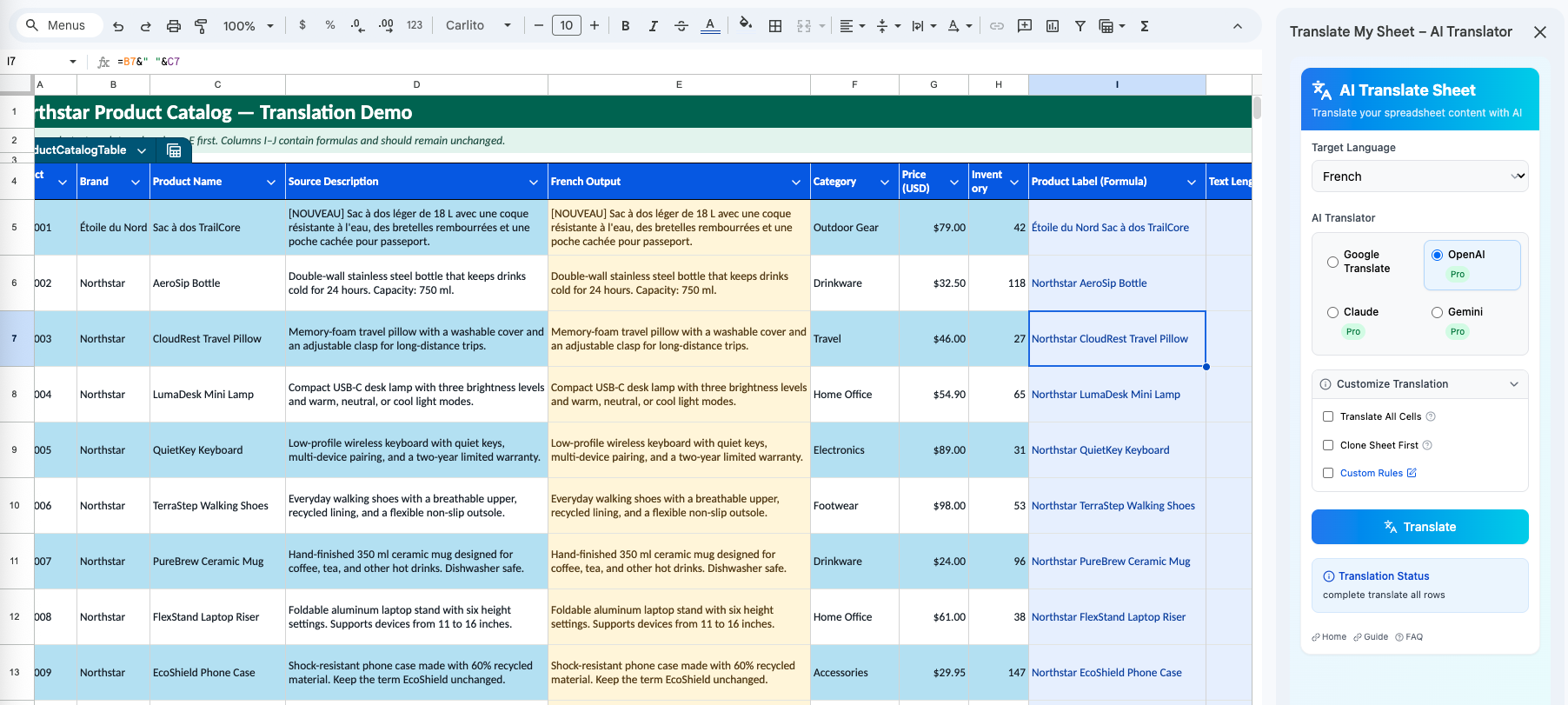
4. Choose an engine and language
Start with Google Translate for free, or use OpenAI, Claude, or Gemini with Pro. Choose one of the 134 target languages from the selector at the top of the sidebar.
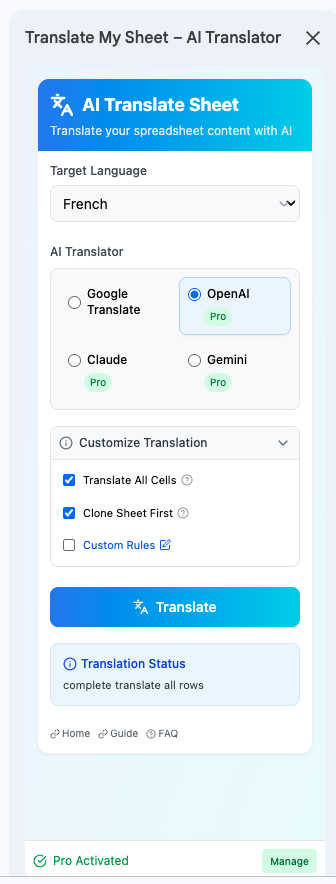
5. Start with a sample
Translate a small range, review the result, then expand to the intended selection or active sheet. Keep the optional sheet clone enabled for important bulk jobs.
6. Monitor or cancel
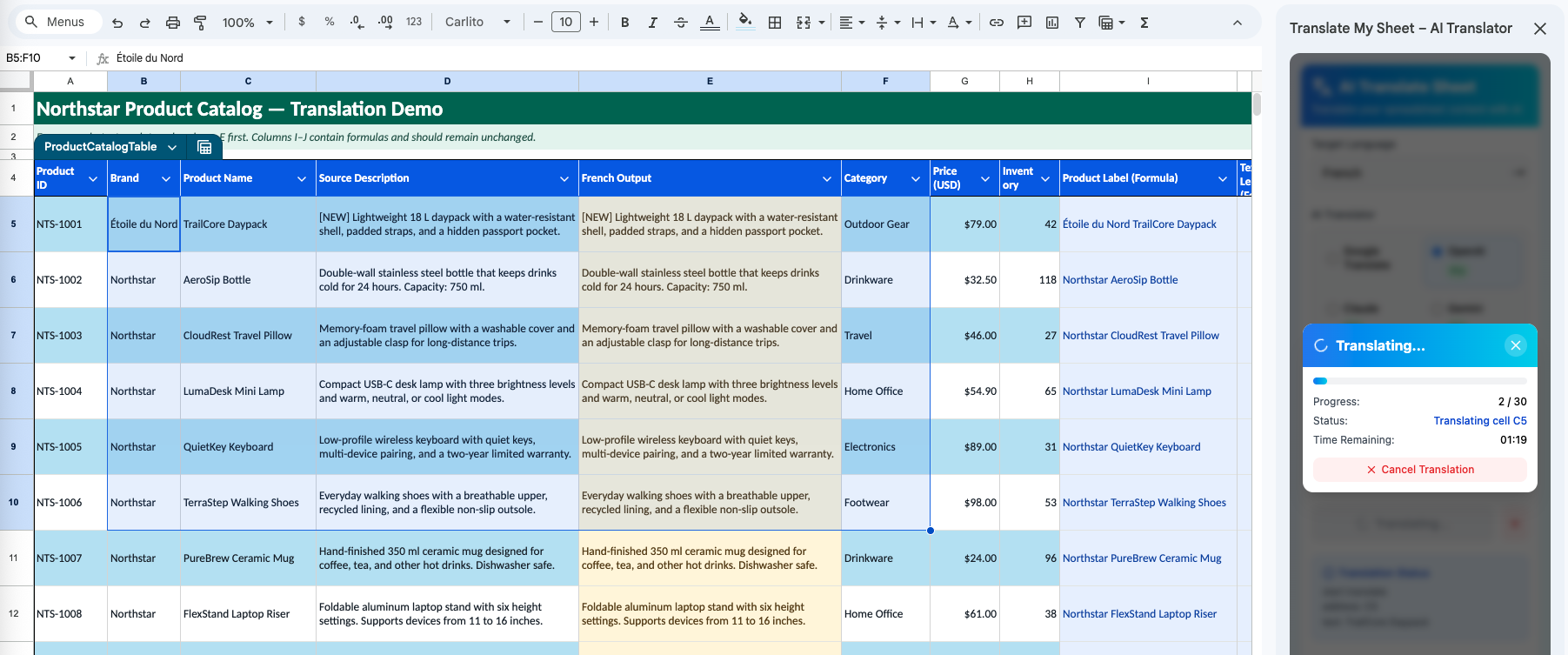
Follow current and total items, status, and estimated time in the sidebar. Cancel the active job if the scope, engine, or instructions need to change.
7. Review the translated cells
Check meaning, terminology, protected names, punctuation, and formatting before translating a larger range. Keep the source available when the content needs editorial or professional review.