How to Bulk Translate Google Sheets Without Copy-Paste
A practical workflow for translating selected ranges or an entire Google Sheet while keeping formulas out of the translation queue.
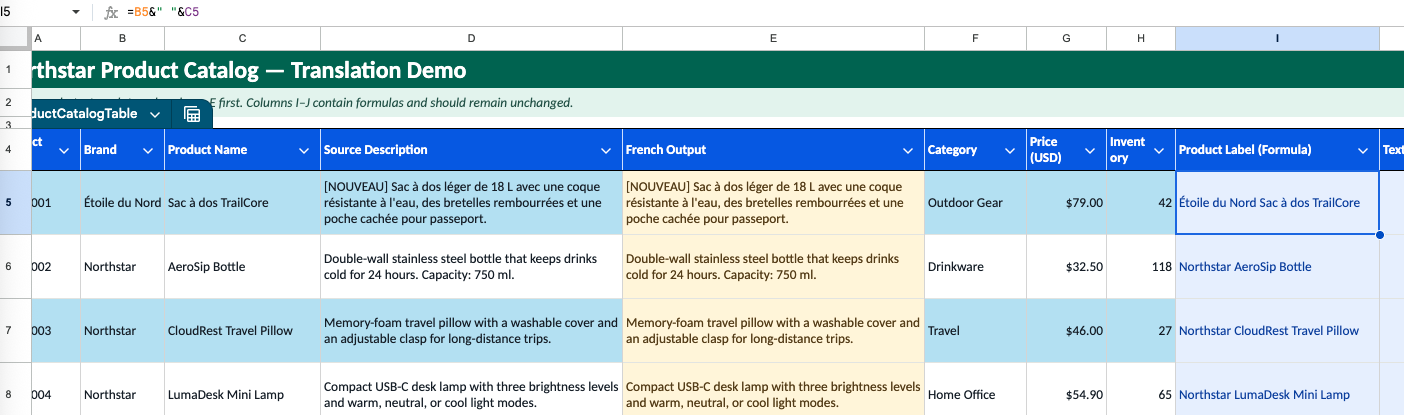
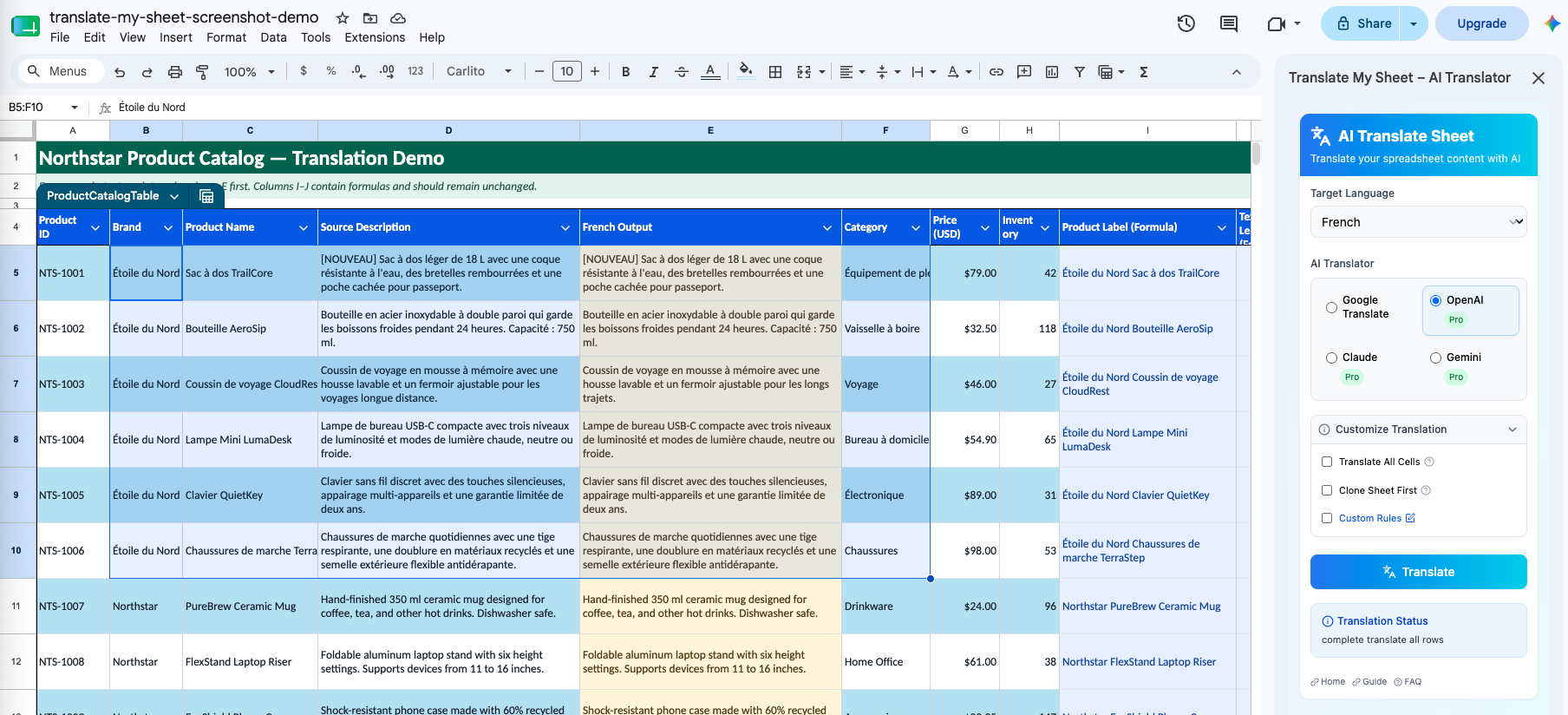
Spreadsheet translation becomes tedious when every batch requires copying cells into a separate tool and pasting the result back into the correct rows. Translate My Sheet keeps that work inside Google Sheets and lets you choose between a selected range and the complete active sheet.
Before you translate a large sheet
Decide which columns contain customer-facing text and which contain identifiers, formulas, URLs, or review status. Even though the add-on detects and skips formula cells, a precise selection makes the job easier to review.
- Keep the original source text available until review is complete.
- Use a representative sample that includes your real terminology.
- Keep the optional clone-before-translation setting enabled for important sheets.
- Remove personal or confidential data that is not needed for translation.
1. Select the translation scope
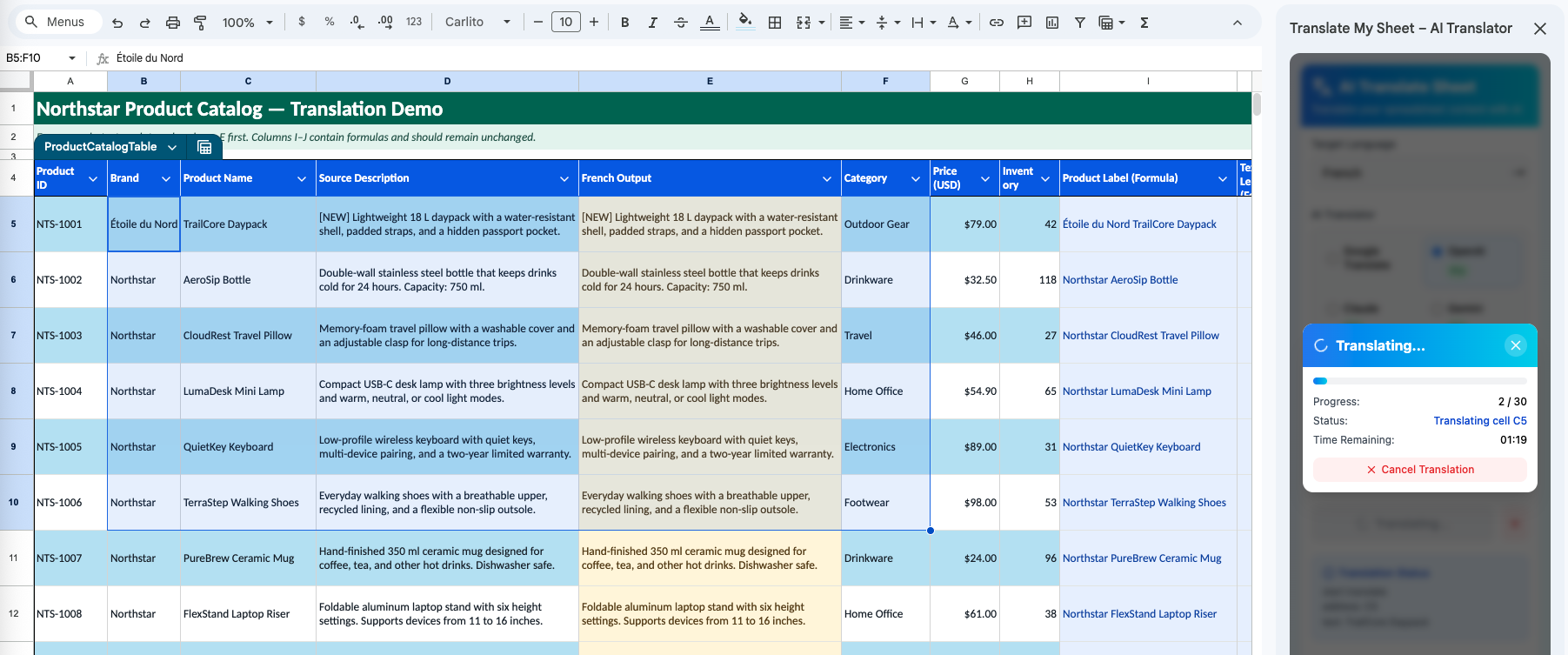
Highlight the cells you want to process and choose the selection option in the sidebar. Use the full-sheet option only when the complete active sheet is intended for translation.
2. Choose an engine and target language
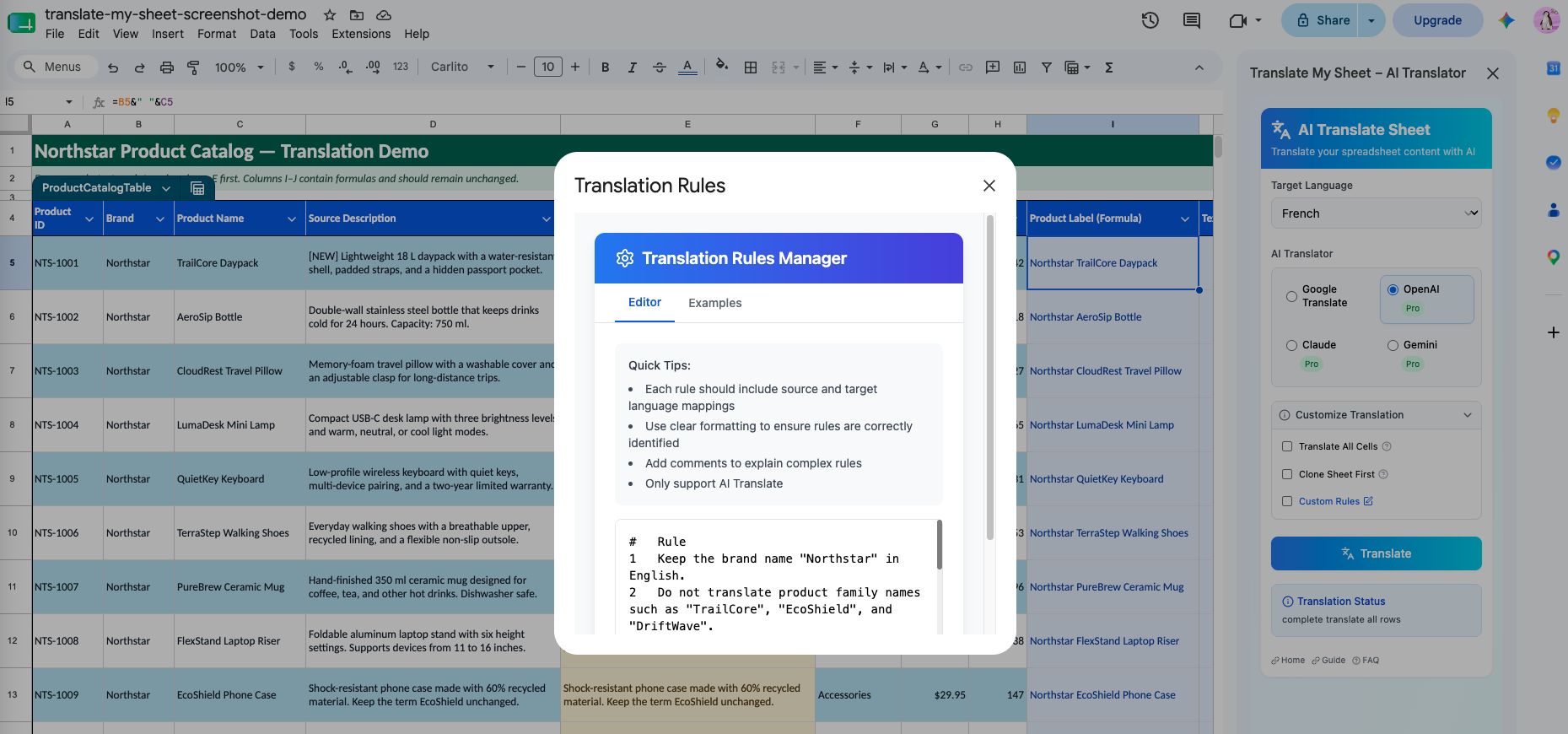
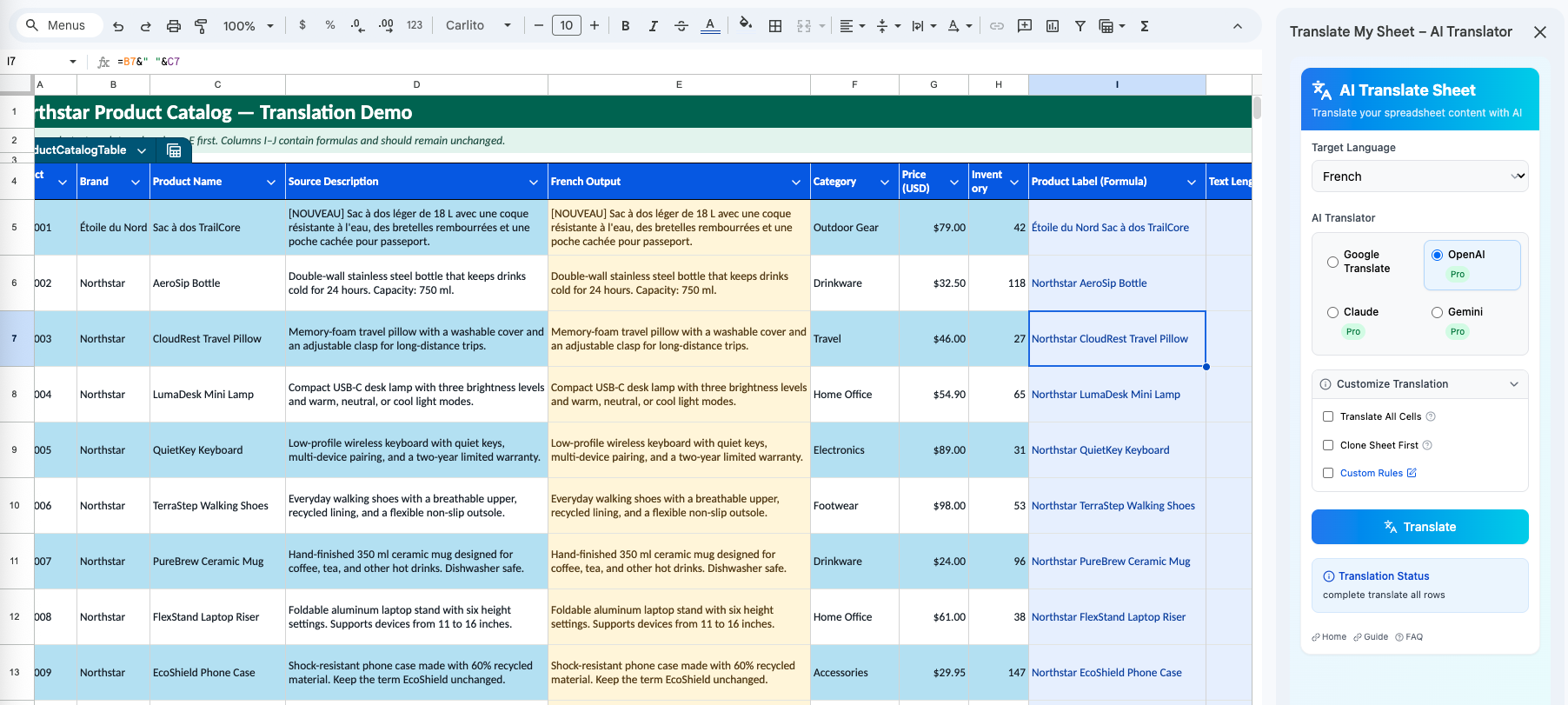
Google Translate is the free starting point. Pro adds OpenAI, Claude, and Gemini for content that benefits from more context or custom translation instructions. Source language can remain on automatic detection, and the add-on offers 134 target languages.
3. Test a small range
Translate a small, representative set of rows before processing a large catalog or research dataset. Check meaning, tone, protected terms, punctuation, and the amount of editing required.
4. Run and monitor the job
The sidebar shows current and total items, job status, and an estimated remaining time. You can cancel an active translation if the scope or settings need to change.
5. Review the result
AI and machine translation both require review when the content affects customers, contracts, safety, or regulated decisions. Compare the translated cells with the source and use a qualified translator for high-stakes content.
Install Translate My Sheet from Google Workspace Marketplace and start with Google Translate for free.